
Introduction: The Power of Tagging
In the world of small business, speed and searchability are key. While folders are a rigid way of organizing, organizing inventory with tags provides a dynamic, “horizontal” way of organizing. Tags enable you to organize items that belong to different folders but share common characteristics.
Why Tags Matter for Small Businesses
While categories are typically exclusive from one another, tags are not. This means that one item can have many tags. This way, you can find exactly what you are looking for in a matter of seconds, no matter the size of your collection.
Key Use Cases for Dynamic Inventory Tagging
- Priority Tracking: Use “High Priority” or “Fast Mover” tags to concentrate on the restocking of the items.
- Status Indicators: Apply “Fragile,” “Refurbished,” or “Reserved” tags to keep your team updated.
- Supplier Management: Apply the manufacturer’s name as a tag on the item for easy filtering while reordering.
- Specialized Cataloging: For niche businesses, specialized tagging can revolutionize your workflow. For example, learning how a Grocery Inventory App for Home Changed the Way I Shop, Cook, and Save Money can provide insights into managing perishables and reducing waste in a commercial kitchen or small retail setting.
Step-by-Step Guide
Step 1: Navigating to the Tag Management Suite
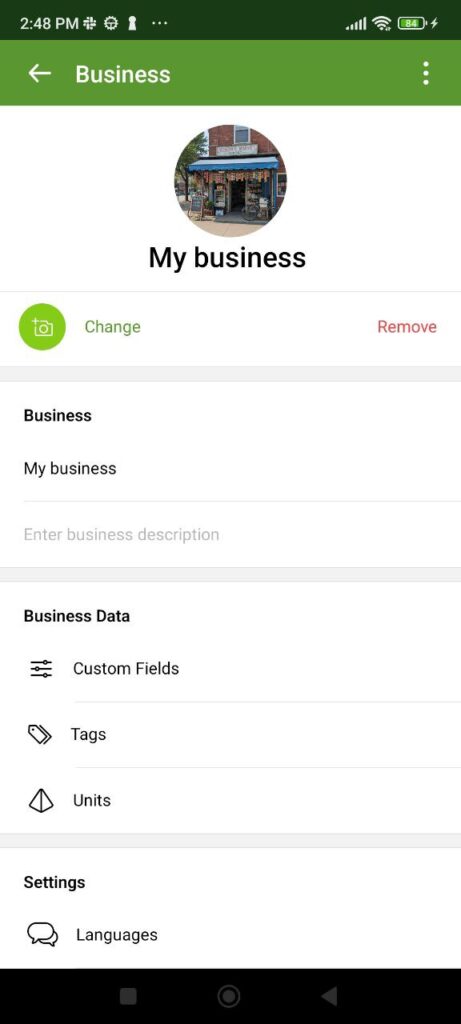
To begin, open Stockify and head to the Settings menu. From here, locate the Tags section. This is your central hub where you can view your existing library of tags or create new ones from scratch.
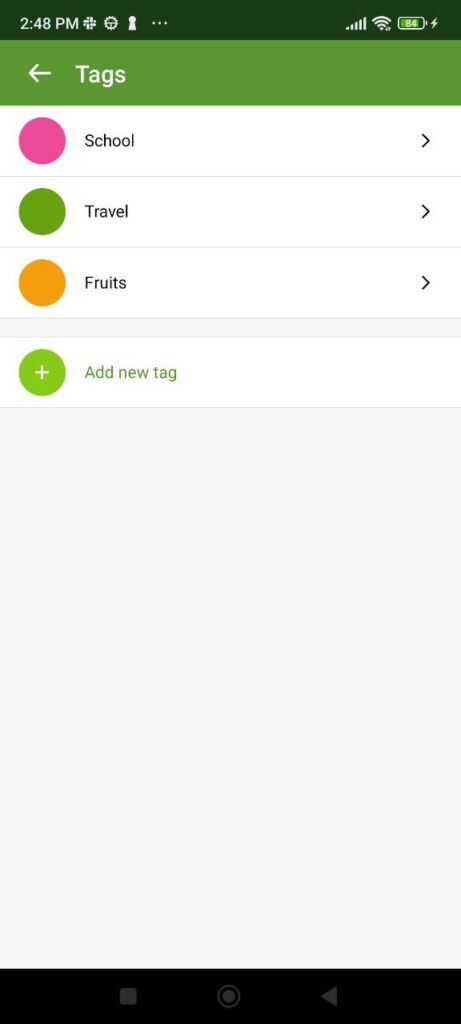
Step 2: Defining Your First Tags
In the Tag list, click the “+” button to add a new tag.
- Choose a clear name: Keep it short (e.g., “Trending,” “Low Stock”).
- Select a Color: Stockify allows you to color-code your tags. Use red for urgent status and green for “In Stock” to make your product list visually scannable.
Step 3: Assigning Tags to Individual Products
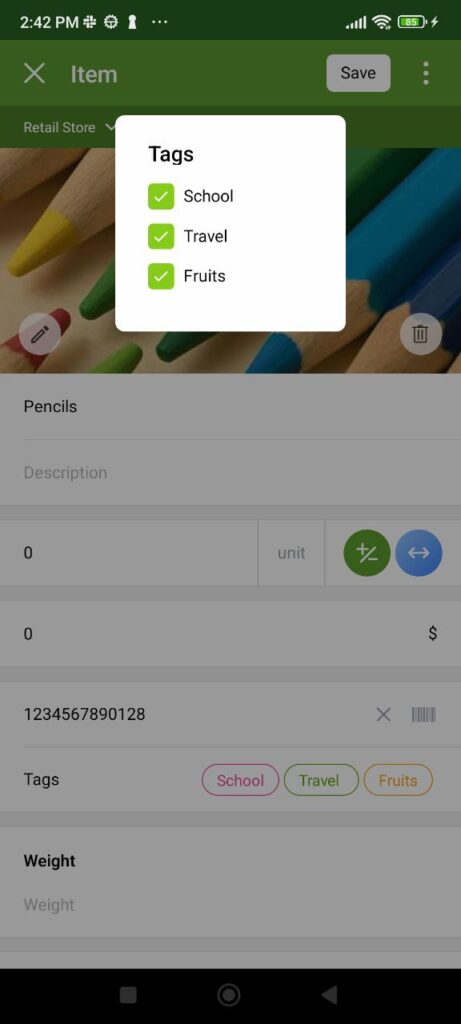
- Scroll down to the “Tags” field.
- Choose the tags that apply from your list.
- Save the product. You will then notice that these tags show up as colored badges on your main Product List.
Now that you have your tags set up, it is time to assign them. Open any product through the Product Form.
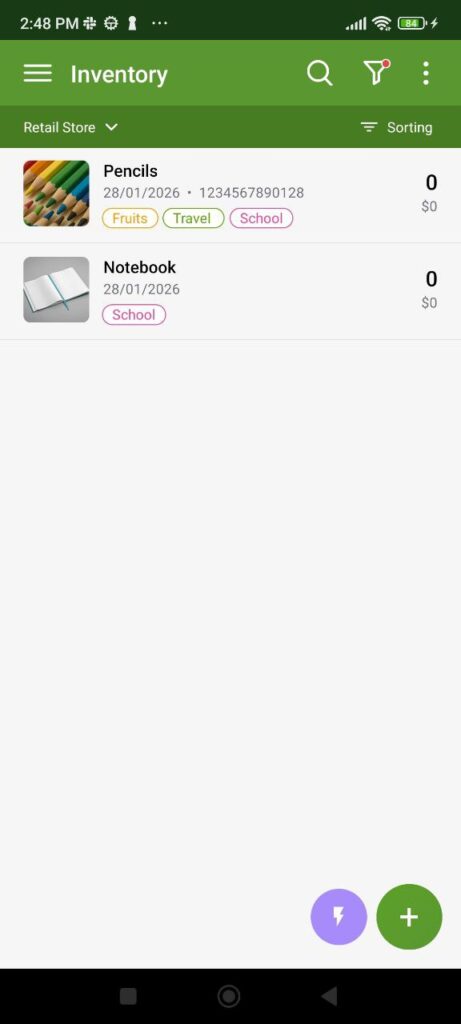
Step 4: Leveraging Tags for Advanced Filtering
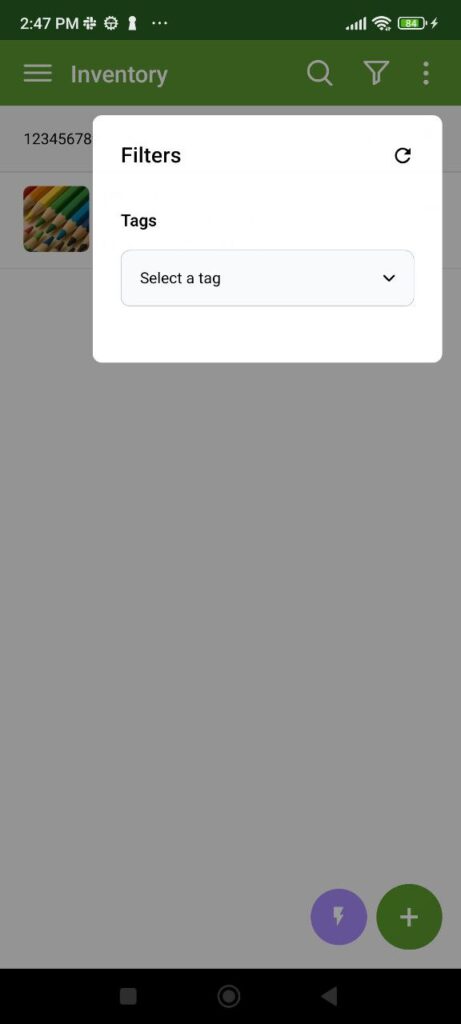
The real magic of tags to organize inventory happens when you need to find something. On the main inventory screen:
- Tap the Filter icon.
- Select the tag you wish to view (e.g., “Fragile”).
- Stockify will instantly hide all other items, showing you only the products that match that specific tag across all folders and locations.
Best Practices for a Tagging System
To keep your Stockify database clean, follow these three rules:
- Be Consistent: Don’t use “High-Priority” and “Urgent” for the same thing. Pick one and stick to it.
- Audit Regularly: Delete tags that are no longer relevant (like an old “Clearance 2024” tag) to keep your dropdowns tidy.
- Color Code with Intent: Use a specific color palette (e.g., blues for materials, oranges for sales status) to improve mental recognition.
Conclusion
By learning the key to organizing your inventory with tags, you’re moving from simple listing to true asset management. Stockify is built to provide this level of management without the overhead of enterprise-level applications. Whether you’re managing 50 items or 5,000, a smart tagging system is the key to keeping everything organized.
Further Reading
Tags are excellent for cross-category filtering, but for a truly professional setup, you should combine them with a solid folder hierarchy.
Check out our related article on Using Folders to Organize Your Inventory Groups to learn how to build a structural foundation that complements your new tagging system.


